MongoDB and MongoDB Compass Installation Guide
Free, non-relational database that enables developers to scale their projects
Installation time: 15-20 minutes
MongoDB Community Server Overview
- Free, non-relational database for scaling projects to production
- Supports Windows x64 systems with MSI installer
- Version 8.2.1 with SSL support and service configuration
- Includes MongoDB Compass GUI installation option
- Automatic service startup and Windows integration
Instructions:
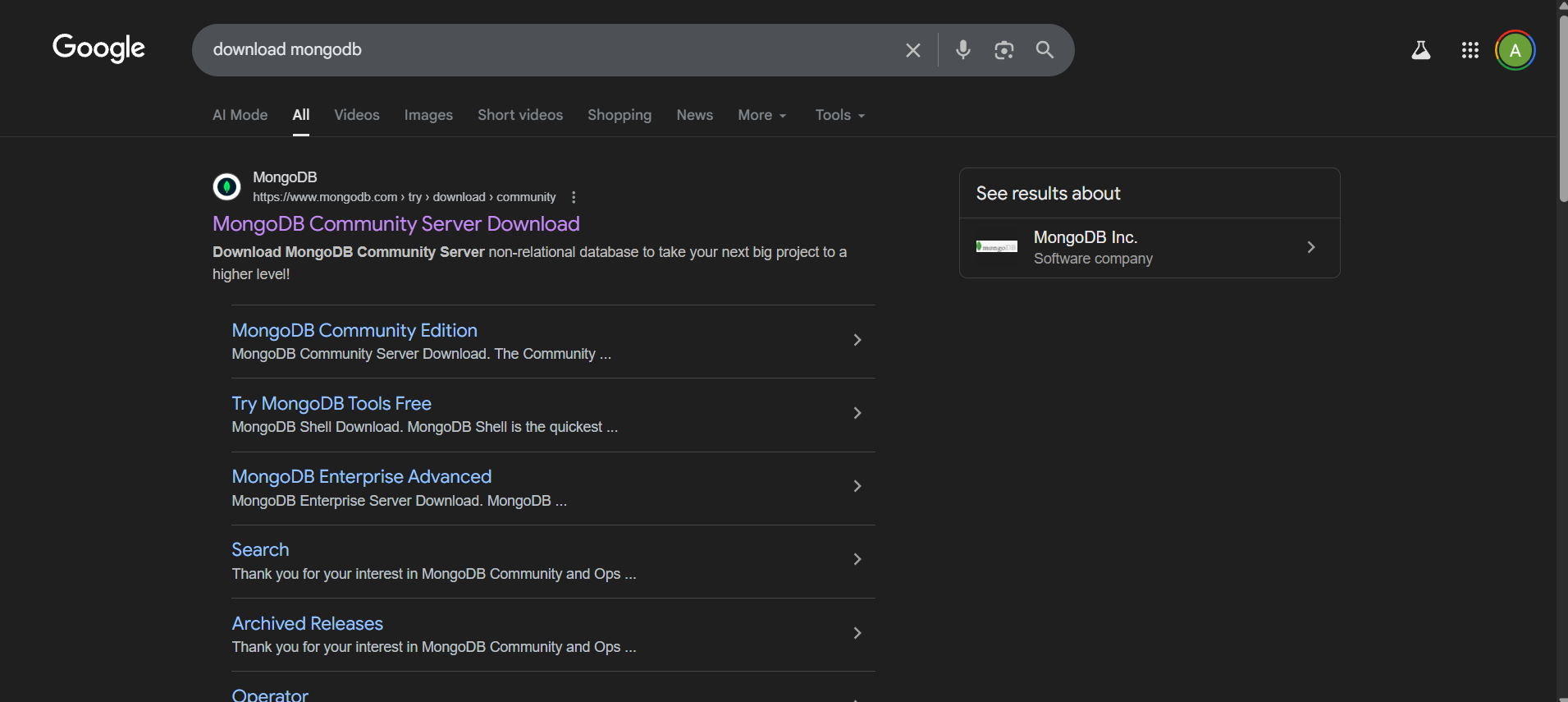
- 1Visit the MongoDB official website by searching 'download mongodb'
- 2Navigate to the MongoDB Community Edition download page
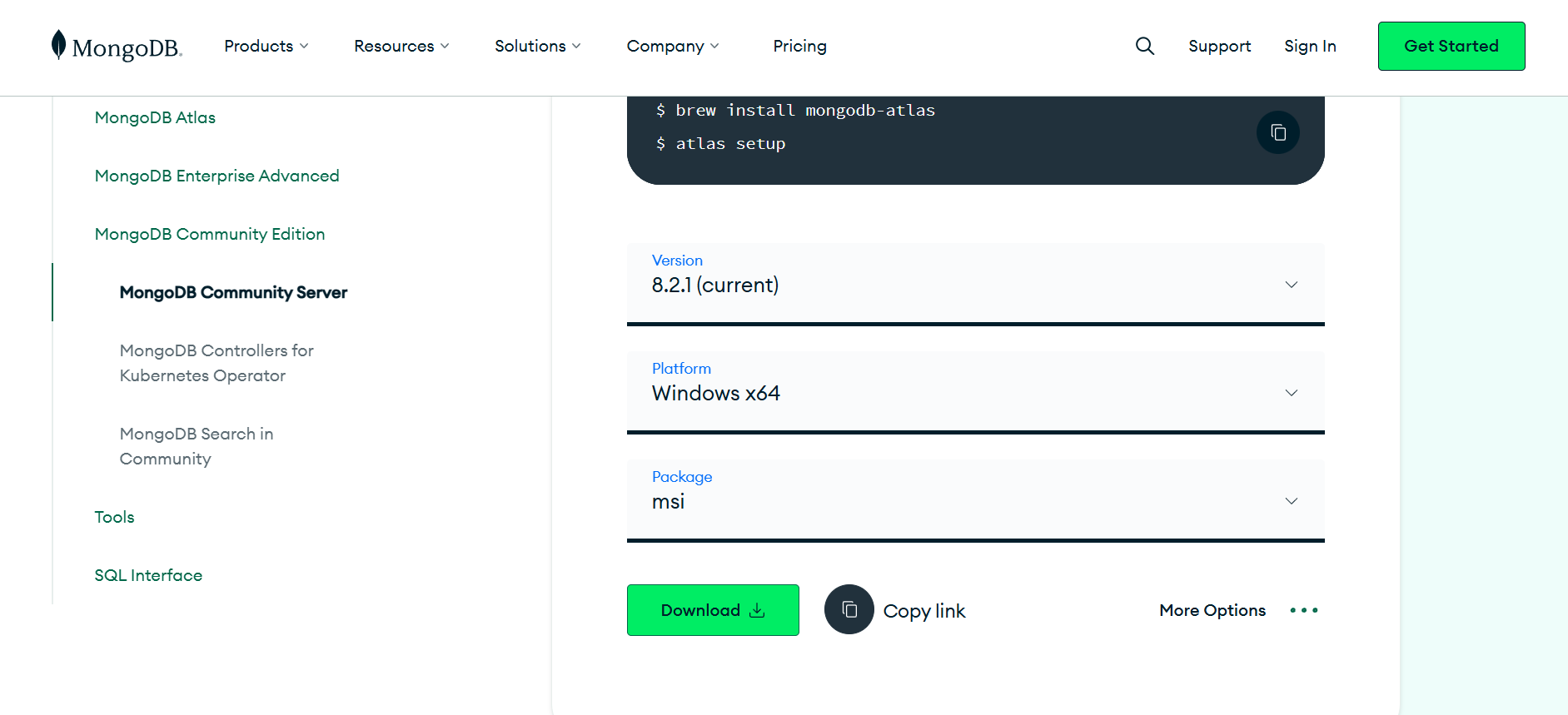
- 3Select the following specifications:
- 4Version: 8.2.1 (current)
- 5Platform: Windows x64
- 6Package: MSI
- 7Click the Download button to download the installer
- 8Alternatively, you can copy the download link for later use
📸 Click images to preview in full size
Installation Features
MSI Installer
Official Windows installer with SSL support
Service Configuration
Automatic Windows service setup and management
Compass Integration
Optional GUI tool installation alongside server
System Requirements
Operating System
Windows x64
Version
8.2.1 (Current)
Package Format
MSI (Windows installer)
Disk Space
Varies based on setup type (Complete installation requires more space)
Installation Complete!
MongoDB Community Server 8.2.1 is now installed and running as a Windows service. Your MongoDB instance is ready for development and production use!
Need help with MongoDB Community Server installation? Contact us for support.
What's Next?
With MongoDB installed, explore these related resources:
📊 MongoDB Compass Features
Visual Query Builder
- •Drag-and-drop query construction
- •Real-time query validation
- •Aggregation pipeline builder
Performance Analysis
- •Query performance insights
- •Index usage analysis
Data Management
- •Document editing and validation
- •Schema analysis and visualization
📖 Learning Resources
Official Documentation
Tutorials & Courses
💡 Pro Tip: Use MongoDB Compass to visually explore your data, create queries, and optimize performance before writing code.
🤝 Community & Support
Comprehensive MongoDB Compass Guide
MongoDB Compass is the official GUI for MongoDB that makes it easier to visually explore your data, construct queries, analyze schema, inspect performance, and perform common administrative tasks without relying solely on command-line tools. This guide walks through the key Compass features, practical workflows, and best practices so you can work confidently with MongoDB whether you are prototyping, developing, or operating production databases.
Why use Compass?
Compass exposes MongoDB internals in a clear visual way. You can quickly see collections and documents, inspect field types and distributions, build aggregation pipelines with a step-by-step editor, and view index usage and explain plans. For teams, Compass is useful for onboarding, debugging data issues, and validating the shape of documents before integrating with application code.
Installing MongoDB Compass
Compass is available as a standalone installer for Windows, macOS, and Linux. Download the version that matches your OS from the MongoDB website. On Windows, the Compass installer can be chosen as an option during the MongoDB Community Server MSI installation.
- Download from the official Compass page and choose your OS.
- Install and launch Compass; the first screen prompts for a connection string.
- Keep Compass updated; new releases include bug fixes and new features.
First connection and connection strings
Compass connects to MongoDB using a standard MongoDB connection string (URI). For a local server the most common URI is mongodb://localhost:27017. If you are connecting to a remote server, Atlas, or an authenticated instance, Compass accepts URIs with authentication and TLS options.
Common examples
- Local, no auth: mongodb://localhost:27017
- With username/password: mongodb://user:pass@host:27017/dbname
- Atlas connection (SRV): mongodb+srv://user:pass@cluster0.abcd.mongodb.net/mydb?retryWrites=true&w=majority
Compass UI tour
The Compass interface is organized to help you move from a high level to specifics: at the top level you choose a server and database; within a database you see collections; and within a collection you explore underlying documents, indexes, and schema information.
- Sidebar: lists databases and collections, and provides quick actions to create or drop.
- Documents view: browse, filter, edit, delete, and insert documents with an intuitive editor.
- Schema tab: detects field types, shows distribution, and highlights anomalies.
- Aggregations: a visual pipeline builder with previews at each stage.
- Explain Plan and Indexes: inspect query plans and monitor index effectiveness.
Exploring schema and data
Compass analyzes the documents in a collection and displays a summarized schema. This includes field names, types, array contents, and the percentage of documents that contain each field. Use this view to detect fields that are sparse, to find inconsistent types, or to validate your expected data model.
Typical workflow: open the Schema tab, click Analyze, and review the field list. Drill into a field to see example documents containing that field and to inspect nested objects and arrays.
Querying and filtering
The Documents view supports ad-hoc filtering using MongoDB query syntax. Enter a filter object (for example { "status": "active" }) or switch to the JSON editor to build more precise filters. Compass shows results with pagination and supports sorting and projection directly from the UI.
- Use the Find input for quick filters and saved queries.
- Apply projection to limit returned fields and speed up previews.
- Sort and paginate results to examine representative documents.
CRUD operations
Compass supports create, read, update, and delete operations with a document editor that uses relaxed JSON and provides in-place type validation. You can insert new documents using the Add Data menu, or edit existing documents inline—changes are executed as atomic updates.
Tips: when editing a document, prefer using update operators such as $set and $unset for predictable behavior. Use transactions where you need multi-document atomicity and your deployment supports them.
Aggregation pipeline builder
One of Compass's most powerful features is its aggregation pipeline editor. You can construct each stage visually and preview the output as you go. This reduces iteration time when building complex data transformations and analytics queries.
Practical steps: add a $match stage to narrow documents, then group or project transformed fields. Use $facet for parallel computations and $lookup to join related collections where appropriate. Compass displays the produced document examples to help validate each stage.
Indexes and performance
Compass surfaces index information and helps you understand how queries use indexes. The Indexes tab shows existing indexes, their definitions, and options. The Explain Plan feature runs a query with explain to reveal the query plan and whether an index scan or collection scan occurred.
- Identify slow queries and check which indexes they use.
- Create appropriate single-field or compound indexes to match frequent query patterns.
- Use the Schema view to discover fields used in filters that might need indexing.
Data validation and schema rules
MongoDB supports JSON Schema validation at the collection level. In Compass you can inspect validation rules and update them to enforce required fields or restrict field types. This is especially helpful when multiple services write to the same collections.
Best practice: start with permissive rules during early development and tighten validations as your application stabilizes, reducing the chance of accidental breakage.
Security and authentication
Compass supports connecting with username/password credentials, LDAP, and X.509 where configured. For production systems consider using TLS/SSL for encrypted connections and avoid using root or admin credentials for everyday tasks.
- Use role-based access control (RBAC) to limit what users can do.
- Prefer short-lived credentials and rotate them regularly.
- When connecting to Atlas, use the SRV connection string and IP access lists to restrict allowed clients.
Backups, exports, and importing data
Compass lets you export query results and collections as JSON or CSV, which is useful for migrating or snapshotting data. For full backups, use mongodump/mongorestore or the managed snapshot services in MongoDB Atlas.
When exporting, consider projections to avoid exporting large unneeded fields, and remember to secure exported files since they may contain sensitive data.
Typical workflows and tips
- Rapid exploration: use Schema + Documents together to prototype queries before adding them to application code.
- Debugging: open Explain Plan for slow queries, iteratively add or change indexes, and re-run explain to verify improvements.
- Data cleanup: identify documents with missing or inconsistent fields using Schema distributions, then export and run targeted updates.
- Collaboration: share aggregation stages or exported query snippets with teammates as reproducible investigation steps.
Troubleshooting common issues
Connection failures are among the most frequent problems. Check that the MongoDB server is running, that ports are open, and that any required authentication or TLS settings are included in the connection string. For permission errors, verify the logged-in user's roles. If queries are slow, use indexing and explain plans to diagnose the cause.
Examples and recipes
Here are a few practical recipes you can try in Compass to learn how features map to real tasks.
- Find documents missing a field: use filter
{ "field": { "$exists": false } }. - Sample aggregation pipeline: $match recent documents, $group by category, and $sort by count. Build each stage in the Aggregations tab and preview results.
- Export top results: run your filter and export the visible documents to JSON for sharing or offline analysis.
When to use Compass vs code
Compass is optimized for data exploration, ad-hoc queries, and quick administrative tasks. For production automation, migration scripts, and deployments, prefer using drivers and command-line tools where repeatability and source control are required. Use Compass as a complement to code-based workflows rather than a replacement.
Final thoughts
MongoDB Compass is a valuable tool for developers and operators. By combining visual schema analysis, an aggregation pipeline editor, and index/performance insights, Compass speeds up debugging and reduces the risk of introducing errors when designing queries. Use the features described here to explore your data confidently and to build performant, well-structured applications backed by MongoDB.
Using MongoDB Compass with Different Programming Languages
MongoDB Compass works seamlessly with various programming languages. Here's how to integrate Compass with popular languages for database development:
JavaScript/TypeScript
For JavaScript and TypeScript applications:
- Connection: Use the MongoDB Node.js driver with connection strings from Compass
- Schema Design: Use Compass to visualize and optimize document structures
- Query Testing: Test aggregation pipelines in Compass before implementing in code
- Performance Monitoring: Monitor query performance and index usage
Python
Integrating Compass with Python applications:
- PyMongo Driver: Use connection strings from Compass in PyMongo
- Data Exploration: Analyze Python data structures in Compass
- Aggregation Testing: Build and test complex aggregations
- Index Optimization: Identify and create indexes for Python queries
Java
For Java applications using MongoDB:
- MongoDB Java Driver: Connect using Compass-generated connection strings
- POJO Mapping: Design document schemas compatible with Java objects
- Query Optimization: Test and optimize MongoDB queries
- Transaction Testing: Verify multi-document transactions
C#/.NET
Using Compass with C# and .NET applications:
- MongoDB .NET Driver: Integrate connection strings from Compass
- LINQ Queries: Test LINQ queries against Compass data
- Schema Validation: Ensure data compatibility with .NET models
- Performance Analysis: Monitor query execution times
Go
For Go applications:
- MongoDB Go Driver: Use Compass connection strings
- Struct Mapping: Design documents matching Go structs
- Query Building: Test complex queries in Compass
- Index Management: Optimize indexes for Go operations
PHP
Integrating Compass with PHP applications:
- MongoDB PHP Driver: Connect using Compass connection strings
- Document Design: Structure data for PHP applications
- Query Testing: Validate PHP MongoDB queries
- Performance Tuning: Optimize for PHP workloads
Ruby
For Ruby on Rails and Ruby applications:
- MongoDB Ruby Driver: Use Compass for connection management
- Rails Integration: Design schemas for Rails models
- Query Optimization: Test and optimize Ruby queries
- Gem Compatibility: Ensure compatibility with MongoDB gems
Rust
Using Compass with Rust applications:
- MongoDB Rust Driver: Connect using Compass strings
- Type Safety: Design schemas matching Rust structs
- Query Validation: Test queries for Rust applications
- Performance Monitoring: Optimize for Rust performance characteristics
Swift (iOS/macOS)
For iOS and macOS applications:
- MongoDB Swift Driver: Use Compass for connection setup
- iOS Data Models: Design documents for Swift structs
- Offline Sync: Test Realm integration with MongoDB
- Query Optimization: Optimize for mobile performance
Kotlin (Android)
For Android applications with Kotlin:
- MongoDB Kotlin Driver: Connect using Compass
- Data Classes: Design schemas for Kotlin data classes
- Realm Integration: Test mobile database sync
- Query Performance: Optimize for Android constraints
Scala
Using Compass with Scala applications:
- MongoDB Scala Driver: Integrate Compass connections
- Case Classes: Design documents for Scala case classes
- Functional Queries: Test functional programming queries
- Performance Analysis: Monitor Scala application performance