Oracle VirtualBox 7.2.2 Setup
Windows 10/11 - Virtualization Platform Installation
Installation time: 15-20 minutes
Prerequisites & System Requirements
- Windows-based computer with x86_64 architecture
- Administrator privileges for software installation
- At least 150MB free disk space for base installation
- Additional space for virtual machines (varies by use)
- Compatible hardware for virtualization support
Instructions:
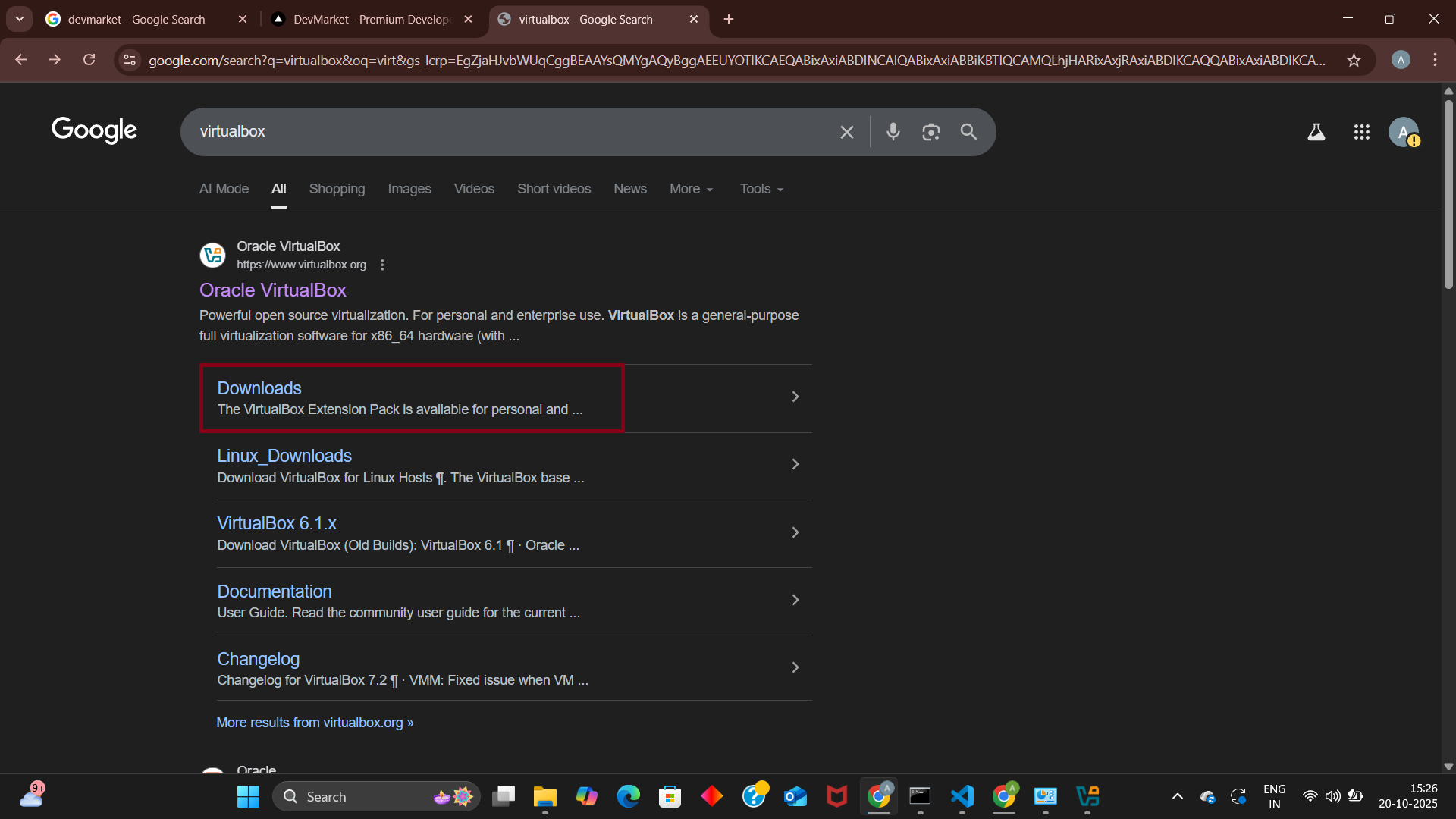
- 1Visit the official Oracle VirtualBox website at virtualbox.org
- 2Navigate to the Downloads section
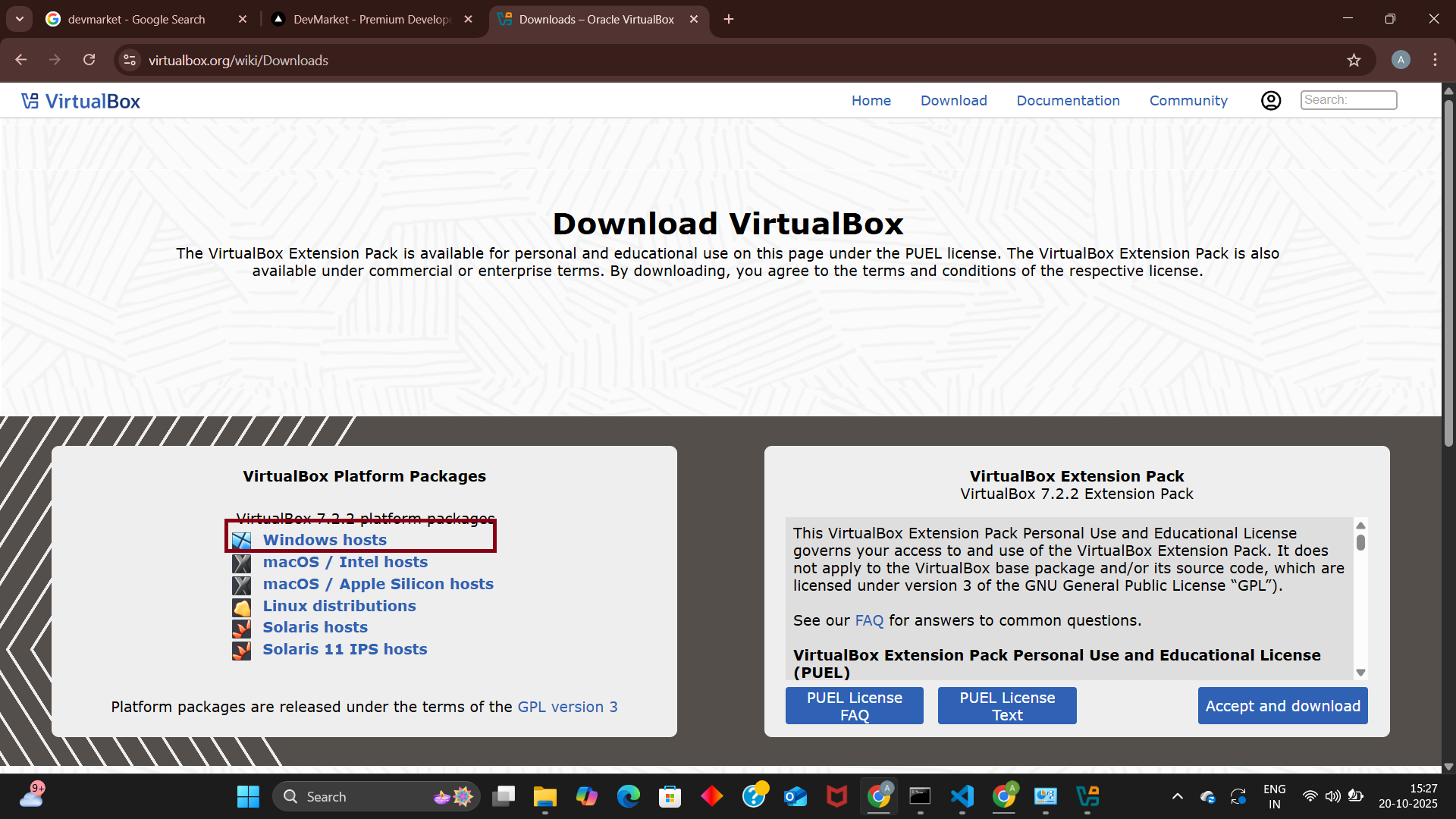
- 3Select 'Windows hosts' for your operating system
- 4Download VirtualBox-7.2.2-amd64.exe installer file
- 5Ensure you have a stable internet connection for the download
📸 Click images to preview in full size
Key Features
Free & Open Source
GPL v3 licensed virtualization platform
Cross-Platform
Windows, macOS, Linux support
Multiple OS Support
Run various operating systems simultaneously
Troubleshooting
VM won't start
Enable virtualization in BIOS/UEFI settings
Installation fails
Run installer as administrator and check disk space
Poor performance
Increase VM memory and install Guest Additions
Installation Complete!
Oracle VirtualBox 7.2.2 is now installed and ready for creating virtual machines. Start exploring different operating systems!
Need help with VirtualBox setup? Contact us for support.
What's Next?
With VirtualBox installed, create your first virtual machine:
Common Use Cases
🖥️ Operating System Testing
Test different operating systems, distributions, and versions without affecting your main system or requiring multiple physical machines.
💻 Software Development
Create isolated development environments for different projects, test compatibility across platforms, and run legacy software safely.
🎓 Learning and Training
Practice system administration, experiment with configurations, and learn new technologies in a risk-free sandbox environment.
🔒 Security Research
Safely analyze malware, test security tools, and conduct penetration testing in isolated virtual machines with snapshots.
📖 Learning Resources
Official Documentation
Community & Tutorials
💡 Pro Tip: Install VirtualBox Extension Pack for USB 3.0, Remote Desktop, and disk encryption support. Download from the same page as VirtualBox.
🔧 Advanced VirtualBox Configuration & Enterprise VM Management
Master advanced VirtualBox features, enterprise VM management, networking configurations, and performance optimization techniques. This comprehensive guide covers everything from VM cloning and snapshots to headless operation and automation for production environments.
⚙️Virtual Machine Configuration & Hardware Optimization
Proper VM configuration is crucial for optimal performance and resource utilization. Understanding hardware virtualization, memory management, and storage optimization ensures your virtual machines run efficiently and reliably in both development and production environments.
CPU & Memory Configuration
- Enable hardware virtualization (VT-x/AMD-V)
- Configure nested paging for better performance
- Set appropriate CPU execution cap limits
- Enable PAE/NX for 64-bit guest support
- Configure memory ballooning for dynamic allocation
Storage & I/O Optimization
- Use VDI format for better performance
- Enable SSD optimization for solid-state drives
- Configure I/O APIC for multi-core systems
- Set up host I/O cache for better disk performance
- Use SATA controllers for modern guest OS
VirtualBox Command Line Management
VM Creation & Configuration
Storage Management
💡 Performance Tip: For production VMs, disable unnecessary features like audio, USB controllers, and 3D acceleration to reduce overhead and improve stability.
🌐Network Configuration & Advanced Networking
VirtualBox provides multiple networking modes to suit different use cases, from isolated development environments to complex multi-VM networks. Understanding network configuration is essential for creating realistic testing scenarios and production-like environments.
🔗 Network Adapter Types
NAT (Network Address Translation)
- • Default networking mode for internet access
- • VM can access external networks but not vice versa
- • Automatic IP assignment via DHCP
- • Port forwarding for external access to services
- • Ideal for basic internet connectivity
Bridged Adapter
- • VM appears as separate device on network
- • Direct access from other network devices
- • Uses host's physical network adapter
- • Requires DHCP server on network
- • Best for server and production scenarios
🏠 Internal Networks
Host-Only Adapter
- • Private network between host and VMs
- • No external network access by default
- • Configurable IP ranges and DHCP
- • Secure isolated environment
- • Perfect for development and testing
Internal Network
- • VM-to-VM communication only
- • Complete isolation from host and external networks
- • Custom network names for segmentation
- • Manual IP configuration required
- • Ideal for multi-tier application testing
🔧 Advanced Network Configuration
Port Forwarding Setup
Host-Only Network Creation
🌐 Network Tip: Use multiple network adapters on a single VM to create complex network topologies. Combine NAT for internet access with host-only for management interfaces.
🔄VM Lifecycle Management & Automation
Effective VM lifecycle management includes cloning, snapshots, import/export operations, and automation scripts. These features are essential for maintaining consistent development environments, creating backups, and scaling VM deployments.
📸 Snapshot Management
Snapshot Operations
Snapshot Best Practices
- • Create snapshots before major system changes
- • Use descriptive names and detailed descriptions
- • Limit snapshot chains to avoid performance issues
- • Regular cleanup of unnecessary snapshots
- • Consider disk space impact of multiple snapshots
- • Test snapshot restoration procedures regularly
🔄 VM Cloning & Templates
Cloning Operations
Template Creation Strategy
- • Install base OS with essential updates
- • Configure common software and settings
- • Remove machine-specific identifiers
- • Create snapshot before template finalization
- • Document template configuration and purpose
- • Regular template updates and maintenance
📦 Import/Export & OVA Management
Export VM as OVA
Import OVA/OVF
🔄 Automation Tip: Create shell scripts or PowerShell scripts to automate VM deployment, configuration, and management tasks for consistent and repeatable operations.
🖥️Headless Operation & Remote Management
Running VirtualBox in headless mode enables server deployments, remote management, and automated operations without GUI dependencies. This is essential for production environments, CI/CD pipelines, and cloud deployments.
🚀 Headless VM Operations
Starting VMs Headless
VM Control Commands
🌐 Remote Access Configuration
VRDE (VirtualBox Remote Desktop Extension)
Web Service API
🔧 Automation & Scripting
Batch VM Management Script
PowerShell VM Management
🖥️ Headless Tip: Use systemd services on Linux or Windows Services to automatically start critical VMs on system boot for production environments.
⚡Performance Optimization & Resource Monitoring
Optimizing VirtualBox performance involves understanding resource allocation, host system configuration, and guest OS tuning. Proper monitoring and optimization ensure efficient resource utilization and optimal VM performance in production environments.
🎯 Host System Optimization
Hardware Configuration
- • CPU: Enable VT-x/AMD-V and VT-d/AMD-Vi in BIOS
- • Memory: Ensure sufficient RAM for host + all VMs
- • Storage: Use SSD for VM disk files when possible
- • Network: Dedicated network adapters for heavy traffic
- • Power: Disable power management for consistent performance
Host OS Tuning
- • Windows: Disable Windows Defender real-time scanning for VM folders
- • Linux: Use performance CPU governor
- • Memory: Configure appropriate swap settings
- • I/O: Use deadline or noop I/O scheduler for VM storage
- • Services: Disable unnecessary background services
📊 Performance Monitoring
Resource Usage Commands
Key Performance Metrics
- • CPU usage percentage and load average
- • Memory utilization and ballooning statistics
- • Disk I/O operations per second (IOPS)
- • Network throughput and packet statistics
- • Guest Additions performance counters
Monitoring Tools
- • VirtualBox Manager GUI metrics
- • Command-line VBoxManage metrics
- • Third-party monitoring solutions
- • Guest OS performance tools
- • Custom monitoring scripts
🔧 Troubleshooting Performance Issues
Common Performance Problems
- • Insufficient host memory causing swapping
- • CPU overcommitment across multiple VMs
- • Disk I/O bottlenecks on mechanical drives
- • Network adapter configuration issues
- • Missing or outdated Guest Additions
- • Antivirus software scanning VM files
Optimization Solutions
- • Increase host RAM or reduce VM memory allocation
- • Limit concurrent VMs based on CPU cores
- • Move VM files to SSD storage
- • Use paravirtualized network adapters
- • Install latest Guest Additions
- • Exclude VM directories from antivirus scans
⚡ Performance Rule: Never allocate more than 75% of host resources to VMs. Reserve at least 25% for the host OS to maintain system stability and responsiveness.
🏢Enterprise Deployment & Security Considerations
Enterprise VirtualBox deployments require careful consideration of security, compliance, licensing, and management at scale. Understanding enterprise features and best practices ensures secure and compliant virtualization infrastructure.
🔒 Security & Access Control
VM Security Hardening
- • Encryption: Enable VM disk encryption for sensitive data
- • Access Control: Implement user-based VM access restrictions
- • Network Security: Use internal networks for VM isolation
- • Snapshots: Secure snapshot storage and access
- • Guest Additions: Regular updates for security patches
- • USB Access: Disable unnecessary USB device access
Compliance & Auditing
- • Logging: Enable comprehensive VM activity logging
- • Audit Trails: Track VM creation, modification, and access
- • Data Protection: Implement data loss prevention measures
- • Backup Security: Secure VM backup and recovery procedures
- • Compliance Reports: Generate compliance documentation
- • Incident Response: VM-specific incident response procedures
🏗️ Enterprise Architecture Patterns
Development Labs
- • Isolated development environments
- • Template-based VM provisioning
- • Automated testing pipelines
- • Resource quota management
Training Infrastructure
- • Standardized training VMs
- • Rapid deployment and reset
- • Multi-user access management
- • Progress tracking and monitoring
Legacy System Support
- • Legacy OS and application hosting
- • Hardware compatibility layers
- • Gradual migration strategies
- • Compliance with legacy requirements
📋 Management & Governance
VM Lifecycle Governance
Policy Enforcement
- • Resource Limits: Enforce CPU and memory quotas per user
- • Storage Policies: Implement disk space limitations
- • Network Policies: Control network access and bandwidth
- • Retention Policies: Automatic VM cleanup and archival
- • Approval Workflows: VM creation approval processes
- • Cost Management: Resource usage tracking and billing
🏢 Enterprise Note: Consider VirtualBox Enterprise features or alternative solutions like VMware vSphere or Microsoft Hyper-V for large-scale production deployments requiring advanced management and support.